
B2B Knowledge Base
Find guides and videos for your B2B account
 1.33 min
How to Place an Order in the B2B Portal
(See the accompanying video for a visual walkthrough of the process).
Important before you start: Make sure you are logged in as a dealer.
1. Go to the B2B Portal
Hover your mouse over the black, floating button on the left side of the screen. When it expands to "B2B Portal," click the link and wait for the page to load.
2. Start your order
Scroll down the page a bit (below your order overview), and click the "Order Now" button.
3. Select your products
You will now see the product overview. Add items to your order draft by clicking the quantity selector for the product size and then clicking “Save selection” or “Update order draft.” (The large button under each product)
- Note: The button under the product must turn green before the item is correctly added.
4. Review your order draft
Once you have selected your products, open the order draft (the long button at the bottom of the screen) to check your selections. If everything is correct, click "Next".
5. Choose delivery address
The order draft updates. Now click the "Place order, choose delivery address" button. A window will open on the right side where you can review your address and optionally add a comment. Then click "Continue".
- Need to change products? You can still go back to the product overview at this point.
6. Delivery and payment
- Select your desired delivery method.
- Select your desired payment method. (If you have a discount code, you can enter it here, and the total price will update).
7. Complete the order
Check the box "I accept the terms and conditions", and finally click "Complete [Beløb] kr."
Your order has now been received!
💡 Helpful Tips for the Product Overview and Order Draft
- Adjusting quantities: Use the + / - buttons to change the quantity of an item, or click directly on the number to enter it manually using your keyboard.
- Open/close the order draft: You can open the order draft at the bottom of the screen at any time to get an overview (requires at least one product in the draft). Close it again by clicking "Hide order draft" or "Add/remove products", which will take you back to the product overview.
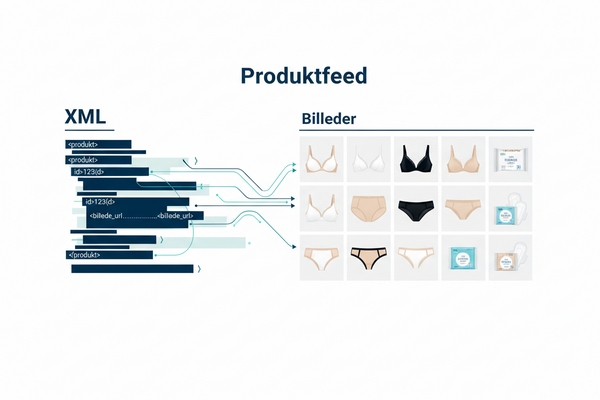
What is a product feed, and why use it?
A product feed is an automatically updated data file containing all 444 Studios' products. Instead of manually copying product information, images, and prices, your system can fetch all the information automatically and continuously directly from our feed.
This means you always have:
- Updated prices
- Accurate product descriptions
- The latest images
- Precise stock information per variant (size, color, etc.)
The product feed is especially useful if you run a webshop, use a PIM system (product information management system), or want to automate updating our assortment on your platform.
How to find the feed URL
- Log in to the 444 Studios B2B portal
- Click on Product Feed on the homepage
- Your browser will now open the feed — copy the URL from the address bar
Your feed URL looks like this: https://entafix.com/custom-xml-feeds/feeds/444-studio-8664.myshopify.com/2a8087c1fa6be0d9b6c66a45a4488624.xml
Beginner — what should I do?
You don’t need to understand the technical part. Do the following:
- Copy the feed URL (see above)
- Send it to your webmaster, IT manager, or whoever maintains your webshop
- Ask them to set up an automatic import of the feed — for example, once a day
That’s it. After that, the products will update automatically without you having to do anything.
Technical — for IT and webmasters
Feed details:
FieldValueFormatXMLUpdate frequencyAutomatic every 15 hoursRecommended import intervalDailyImage formatJPEG, portraitImage size683×1024 px
Fields in the feed:
- id — Unique variant ID
- title — Product title
- description — Product description
- link — Direct URL to the product page
- price — Price including currency
- image — Direct URL to the product image
- sku — SKU per variant
How to import the feed:
- Use the feed URL directly in your PIM system, webshop backend, or import tool
- Set up an automatic job that fetches the URL daily
- The feed returns one row per variant — so if a product exists in 3 sizes, it will appear as 3 separate rows
Note about images: Images are delivered in optimized resolution tailored to 444studios.com's standards (683×1024 px). If you want images in higher resolution or a different format, please refer to our marketing folder — here.
It is possible to have invoices or newsletters sent to a second and third email address.
If you have used this option but want to remove one or both and revert to the primary email address (the one you log in with) - here is the guide:
Do the following:
1. Place yourself on the portal's front page
2. Scroll down to the section "My Information"
3. Click the "edit" button
4. Scroll down and click the "edit" email settings button (a popup will open)
5. Remove the email address from the field that you want to remove, then follow the guide further.
6. Click "send" (your new data will be saved)
7. The portal may need to reload: on the left, find the portal link (floating button) - click it and scroll down to check if your data is updated with the new email addresses.
Note that you cannot remove your primary email address, and if you remove alternative email addresses for invoices and newsletters, the system will then use the primary email address for both invoices and newsletters.
Your primary address is by default linked to all communication from 444 Studios. However, it is possible to have invoices sent to a different email address, and it is also possible to have newsletters sent to a third address.
Do the following:
1. Place yourself on the portal's front page
2. Scroll down to the section "My Information"
3. Click the "edit" button
4. Scroll down and click the "edit" email settings button (a popup will open)
5. Fill in the fields you wish to change, follow the guide.
6. Click "send" (your new data will be saved)
7. The portal may need to reload: on the left, find the portal link (floating button) - click it and scroll down to check if your data is updated with the new email addresses.
Ingen guides fundet